
 Inobitec DICOM Viewer Lite
 Inobitec DICOM Viewer Pro
 Inobitec Web DICOM Viewer
 Inobitec DICOM Server (PACS)
2.1. Open Series
Select a study from the study panel. There are five ways to open a series:
- click the Image viewer
 button on the toolbar;
- double-click the left mouse button on the study title on the toolbar;
- double-click the left mouse button on the series icon on the series panel;
- drag the series icon to the study panel holding the left mouse button;
- right-click the mouse to call the context menu for the series icon, and select one of the options in the Image viewer item.
The series will open in a new tab.
There are three ways to open a series from the explorer window:
- by dragging and dropping the folder with the series from the explorer window to the study list tab. A new study list tab will be opened. The first series of the study will be opened in the new flat image viewer tab;
- by dragging and dropping the folder with the series from the explorer window to the flat image viewer tab stub. The first series of the study will be opened in a new window of the current tab;
- by right-clicking on the selected folder in the Explorer and selecting the Open with Inobitec DICOM Viewer <Edition> <Version> from the context menu (see Section 1.5.4). This function is only available on Windows.
 | ECG modality series (see Chapter 12) and series containing protocols (see Chapter 20) are opened in the respective tabs. PDF documents are opened in third-party software installed in the user’s OS. Series that do not conform to the DICOM standard or series for which there are no special tabs to view are opened in the DICOM tag viewer tab. |
If nessesary, change the sorting order of images. To do it, right-click on the image to open context menu, select the Image sorting item, and then select one of the displaying modes:
- No sorting;
- Sort by image number;
- Sort by image position and phase.
The current order is marked with flag. The default sorting order is defined by the Sort by parameter (see Section 18.7.1).
The series panel will be displayed on the left. To hide/show it select the main menu Image and
the Quick series list item or move the cursor to the panel border so that it would look like this:
 and drag the border holding the left mouse button. The series panel is shown in
Fig. 2.1.
and drag the border holding the left mouse button. The series panel is shown in
Fig. 2.1.
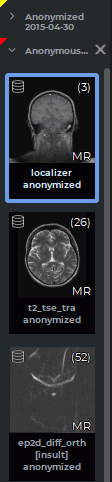
The DICOM Viewer allows you to open multiple series at a time or the same series multiple times. All series are opened in separate windows of the same tab, and their position will depend on the settings described in Section 2.10.
If multiple studies are open in the Image viewer tab, the series on the series panel are grouped by study. A separate color is automatically assigned to each study. The indicator of this color is displayed in the header of the study series list on the series panel and in the upper-left corner of the series windows belonging to this study.
Each series list contains a header with the study name and a list status indicator. To expand a series list, click it with the left mouse button. Only one series list can be expanded at a time; the others are collapsed.
When you move the cursor over the study series list, the Close  button is displayed. Click it
to remove the study and the corresponding series list from the series panel, as well as to close all
series windows of this study. If all series windows of the study are closed in other ways, the study
button and the series list remain on the series panel.
button is displayed. Click it
to remove the study and the corresponding series list from the series panel, as well as to close all
series windows of this study. If all series windows of the study are closed in other ways, the study
button and the series list remain on the series panel.
The thumbnail for the selected Image viewer tab window will be shown in a blue frame on the series panel. If the thumbnail for the selected series window is outside the visible range, automatic scrolling will be performed until the thumbnail for the selected window is displayed.
To open the selected series in the Volume Reconstruction or Multiplanar Reconstruction window,
click the Volume Reconstruction  or MPR Reconstruction
  button on the toolbar
respectively.
button on the toolbar
respectively.


