
 Inobitec DICOM Viewer Lite
 Inobitec DICOM Viewer Pro
 Inobitec Web DICOM Viewer
 Inobitec DICOM Server (PACS)
10.8. Surface Reconstruction
10.8.1 Create Surface
____________________________________________________________________________________________
Functionality is available in the Pro edition
____________________________________________________________________________________________
For reconstruction, click the Surface reconstruction  button on the toolbar.
The process may take some time.
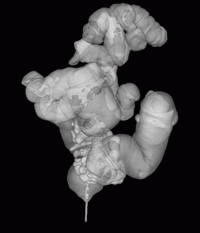
A sample reconstruction is shown in Fig. 10.5.
To display/hide the camera orientation in the surface window, click the Show camera
orientation  button. The camera orientation on the surface is synchronized with the virtual
endoscopy tab. For convenience, you can open surface reconstruction in a separate window and
position it next to the virtual endoscopy window.
button. The camera orientation on the surface is synchronized with the virtual
endoscopy tab. For convenience, you can open surface reconstruction in a separate window and
position it next to the virtual endoscopy window.
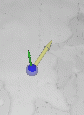
The camera position is highlighted by the blue marker.
The yellow vector shows the view direction, and the green one points upward from the camera (Fig. 10.6).
10.8.2 Surface Orientation and Navigation
____________________________________________________________________________________________
Functionality is available in the Pro edition
____________________________________________________________________________________________
-
To rotate the surface, move the mouse, holding the wheel. To select one of the predefined orientations, use the buttons on the orientation panel. (Fig. 10.7).

Figure 10.7: Surface orientation panel - To move the camera, activate the camera orientation view and click the left mouse button on the 3D surface reconstruction. The camera will move to the selected place in the center of the cavity. If there are overlapping body cavities, the camera will be located in the cavity nearest to the user.
- To change the camera vector, right-click the mouse at any point on the surface. The vector will be directed to this point.
- To change the model transparency, move the Model transparency scroll.
- To drag the surface, move the mouse, holding the wheel and the Shift key.
- To zoom the surface, move the mouse, holding the wheel and the Ctrl key (or the Command key for macOS).


