 Inobitec DICOM Viewer Lite
 Inobitec DICOM Viewer Pro
 Inobitec Web DICOM Viewer
 Inobitec DICOM Server (PACS)
2.9. View Several Studies at a Time
To open several studies simultaneously:
-
From the program window:
- Open a study by opening any of its series.
- Switch to the tab containing the study list.
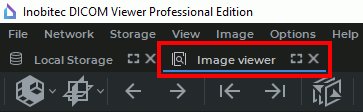
- Select another study and drag one of its series to the tab with the opened study (highlighted in red in Fig. 2.10).
-
From the explorer folder:
- Open a study by opening any of its series.
- Select the folder with the another study and drag one of its series to the tab with the opened study (highlighted in red in Fig. 2.10). The first series of another study opens in a new window of the current tab.
-
From the study list:
- Select several studies on the study list (see Section 1.9).
- Click the
 button on the toolbar or the key combination Alt+I (Option+I for
macOS). The selected studies will be opened in a new Image viewer tab. Series are
opened in compliance with the default series arrangement settings (see Section 2.10).
button on the toolbar or the key combination Alt+I (Option+I for
macOS). The selected studies will be opened in a new Image viewer tab. Series are
opened in compliance with the default series arrangement settings (see Section 2.10).
Series are opened in the same tab, but in different viewer windows. The first series of each study is opened in a separate tab window. You can open studies from any data source (e.g., local storage, folder, zipped file, CD, PACS server). You will find the information on selection of the data source in Section 1.5.
 | ECG modality series (see Chapter 12) and series containing protocols (see Chapter 20) are opened in the respective tabs. PDF documents are opened in third-party software installed in the user’s OS. These series cannot be opened in the Image viewer tab. |
When opened from the PACS Server, SR series containing protocols are opened in the window for viewing structured reports. To view protocols in the editor window, you need to download the respective series or study to the local storage.
There are several ways to maximize any of the series windows to full screen and restore its size:
- click on the
 Expand button in the right-hand upper corner of the series window;
- double-click with the left mouse button on the tab of the series window;
- double-click with the left mouse button on the series window.
The series panel is displayed on the left, and the series are grouped by study (Fig. 2.11).
Series from different studies are displayed on the series panel in separate lists. Each list contains a header with the study name and a list status indicator. The colored indicator on the study button matches the indicator in the upper-left corner of the series windows for that study.
In the figure, the series list of the study marked with a yellow indicator is expanded, and the series list of the study marked with a red indicator is collapsed.
To expand a series list, click it with the left mouse button. Only one series list can be expanded at a time; the others are collapsed.
To close all series windows of the selected study and remove its list from the series panel, move the
cursor over the selected study list and click the Close button  .
.