| 3D MIP mode. The mode may be switched to Mono PET |
 | Mono-PET mode. The mode may be switched to 3D MIP |
 | Mono-KT mode |
 | Fusion PET+KT mode. The mode may be switched to Mono CT |
____________________________________________________________________________________________
Functionality is available in a separate module which is activated in the Pro edition for an extra fee
____________________________________________________________________________________________
____________________________________________________________________________________________
Functionality is available in a separate module which is activated in the Pro edition for an extra fee
____________________________________________________________________________________________
The PET analysis tab may contain 1-9 image viewing windows:
One window;
Two windows side by side;
2X2 grid;
2X3 grid;
2X4 grid;
3X3 grid.
The mode may be changed by pressing the respective button on the toolbar. The button will look different depending on the current mode:
| | 3D MIP mode. The mode may be switched to Mono PET |
| | Mono-PET mode. The mode may be switched to 3D MIP |
| | Mono-KT mode |
| | Fusion PET+KT mode. The mode may be switched to Mono CT |
To switch the mode, activate the respective window by left-clicking on it, click the mode button and choose the mode you need from the menu. The current mode is highlighted in blue. The procedure of setting the template for each mode is described in Section 9.2.2.
On the left, you can see the Series List panel showing all the series for the study. To open the required series in the PET Analysis window, drag it into the window. The MIP window may only be used for PET series, but you can drag PET, CT or fused series to other windows.
Double-click any of the four windows with the left mouse button to unfold it. Please, note that you shouldn‘t activate any of the measuring tools, annotation tools or the magnifier with the left mouse button.
____________________________________________________________________________________________
Functionality is available in a separate module which is activated in the Pro edition for an extra fee
____________________________________________________________________________________________
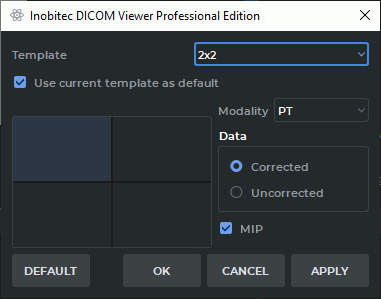
To set the windows arrangement templates, click the mode selection button
(  ,
,  ,
,  ,
,  ,
,  or
or  depending on the mode) and select Settings... A dialog
box shown in Fig. 9.3 will pop up.
depending on the mode) and select Settings... A dialog
box shown in Fig. 9.3 will pop up.
Choose a template from the drop-down menu (One, Two near, 2x2, 2x3, 2x4 or 3x3).
To use this template as default, tick the Use current template as default box.
To set a template window, select this window with the mouse. It will be highlighted (in Fig. 9.3 the bottom left window is selected). Then proceed as follows:
Choose the modality from the drop-down menu (Unspecified, CT, PT or PT+CT). If the Unspecified modality has been chosen, the cell will be empty.
If the PT modality has been chosen, specify the type of PET series to be opened in the window: corrected or uncorrected. To do this, choose the Corrected or Uncorrected option in the Data section. Uncorrected is chosen by default.
Check the MIP box for the PET series to display the maximum intensity projection.
Choose the study number from the drop-down list. The study number can only be assigned for windows with the specified modality. The maximum value of the study number is restricted by the number of windows in the current template. For example, for 3x3 template it will be 9.
To restore the default settings for the current template, click the DEFAULT button. In the dialog box that pops up, click YES to restore the settings or NO to cancel. By default, the following template settings are provided:
One Template: PET+CT combination is shown.
Two near Template: 3D MIP for the corrected PET series in the left window, Fusion (PET+CT) — in the right window.
2x2 Template: from left to right, downwards: 3D MIP for the corrected PET series, corrected PET series, CT series, Fusion (PET+CT).
2x3 Template: from left to right, downwards: 3D MIP for the corrected PET series, corrected PET series, CT series, Fusion (PET+CT), two empty windows.
2x4 Template. In the top row, the series of the first study are displayed in windows (from left to right): 3D MIP for the corrected PET series, corrected PET series, CT series, Fusion (PET+CT). In the windows of the bottom row, the series of the second study are displayed. The arrangement of windows in the bottom row is the same as in the top row.
3x3 Template. In the top row, the series of the first study are displayed in windows (from left to right): 3D MIP for the corrected PET series, corrected PET series, Fusion (PET+CT). In the windows of the second and third rows, the series of the second and third studies are displayed, respectively. The arrangement of windows in the second and third rows is the same as in the first row.
Click OK to apply the settings and close the dialog box, or CANCEL to cancel the operation. To save the changes made while keeping the dialog box open (for example, to continue configuring), click the APPLY button.
The changes in the template do not affect the tabs that had been opened before such changes were introduced.
In empty windows, the parameters of the series are displayed, specified for each window within the current template.
Suitable series from the second and subsequent studies are opened in the tab windows in accordance with the user-defined settings of the window layout template. A series is considered suitable for a window if it matches the requirement for this window provided for the current arrangement template.